
Download Bosco’s Screen Share – Free Secure Screen Sharing Tool for Windows, Mac, Android & iOS
Overview
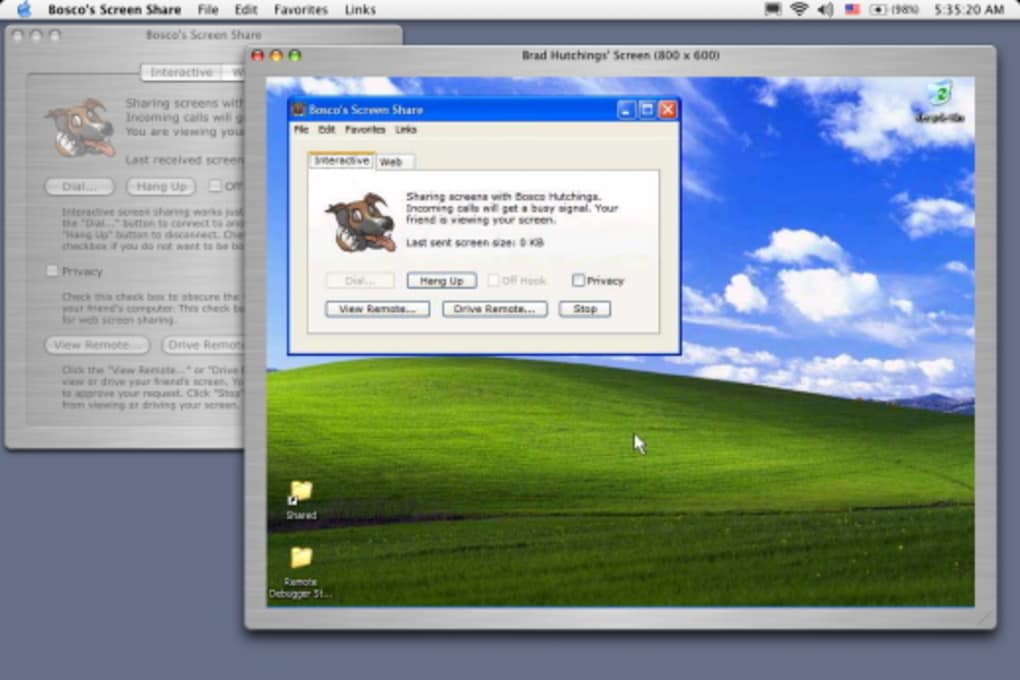
Bosco’s Screen Share is a lightweight yet powerful application designed to let you broadcast your desktop or laptop screen to another computer, regardless of whether the host runs Windows, macOS, Android, or iOS. Whether you’re a software developer needing to demo a new feature, a remote support technician troubleshooting a client’s issue, or a teacher wanting to walk a student through a complex workflow, Bosco’s Screen Share makes the process as simple as a few clicks. The tool’s intuitive setup wizard guides you through creating a secure connection, assigning privacy levels, and deciding which party initiates the call.
Unlike traditional screen‑recording software that forces you to edit and upload video files, this app offers real‑time interaction, letting the remote viewer see exactly what you’re doing as you type, click, or drag‑and‑drop. While it does not include built‑in file‑transfer capabilities, the live visual access often eliminates the need for separate document sharing—users can simply open the required files on the host machine and guide the viewer through them. Security is a core focus: all sessions are encrypted, and you can set passwords or limit access to trusted contacts only.
The application runs with minimal CPU overhead, ensuring smooth performance even on older machines. In short, Bosco’s Screen Share is the go‑to solution for anyone who needs a fast, secure, cross‑platform way to demonstrate software, teach procedures, or provide live technical support without the hassle of video production.
Key Features of Bosco’s Screen Share
- Cross‑platform compatibility – works on Windows, macOS, Android, and iOS.
- Real‑time screen broadcasting with sub‑second latency.
- Encrypted connections to protect privacy and data.
- Customizable privacy levels: password protection, host‑only view, and invitation‑only sessions.
- Simple setup wizard that auto‑detects network settings.
- Low CPU and memory footprint – runs smoothly on older hardware.
- Ability to choose who initiates the call – the viewer or the presenter.
- Support for multiple monitors – share a single screen or an entire desktop.
- Automatic reconnection if the network drops temporarily.
- Free to download with optional premium upgrades for advanced admin controls.
These features combine to make Bosco’s Screen Share a versatile tool for professionals, educators, and casual users alike. The encrypted tunnel ensures that confidential data stays safe, while the lightweight engine guarantees that the sharing experience remains fluid even over modest broadband connections. Because the app supports both desktop and mobile operating systems, you can start a session on a Windows PC and hand it off to a colleague using an iPad without any additional configuration. The built‑in privacy options let you control exactly who can see your screen, making it ideal for client demos where confidentiality is paramount. Moreover, the auto‑reconnect function means you won’t have to restart a session if you momentarily lose Wi‑Fi – the app will quietly re‑establish the link, preserving the flow of your presentation.
Installation & Usage Instructions
Getting started with Bosco’s Screen Share is straightforward. Follow these steps to download, install, and launch your first screen‑sharing session:
- Download the installer. Visit the official website and click the “Download for Windows” or “Download for macOS” button, depending on your primary device. Mobile users can find the app in the Google Play Store or Apple App Store by searching “Bosco Screen Share.”
- Run the installer. On Windows, double‑click the .exe file and follow the on‑screen prompts. macOS users will open the .dmg, drag the app to the Applications folder, and confirm any security warnings. Mobile installations are handled automatically by the app store.
- Launch the application. After installation, open Bosco’s Screen Share. The first time you run it, you’ll be greeted by a short welcome tour that explains the main interface: the “Create Session” button, the “Join Session” field, and the settings icon.
- Configure your session. Click “Create Session.” You’ll be asked to set a session name, choose a password (optional but recommended), and decide who will initiate the connection. If you want the remote user to call you, enable “Viewer Initiates.” If you prefer to start the call, leave the default setting.
- Share the connection details. Once the session is created, a unique alphanumeric code appears on the screen. Send this code to your counterpart via email, chat, or any secure channel. If you set a password, include that as well.
- Start sharing. When the remote party enters the code (and password, if applicable) and clicks “Join,” the screen will appear on their device within seconds. You can now navigate your desktop, open applications, and demonstrate processes live. Use the toolbar at the top to toggle audio, pause the feed, or end the session.
- End the session securely. When you’re finished, click the “End Session” button. The connection is instantly terminated, and the session code becomes invalid, preventing unauthorized re‑entry.
Tips for optimal performance: ensure both devices are on a stable broadband connection (minimum 2 Mbps upload for smooth video), close unnecessary background applications to free up CPU, and, if possible, use a wired Ethernet connection for the host machine. For mobile users, a strong Wi‑Fi signal yields the best experience. The app also includes a “Test Connection” feature in the settings menu, allowing you to verify latency and bandwidth before the live demo begins.
Compatibility, Pros & Cons
Bosco’s Screen Share runs on the following operating systems:
- Windows 10, 11 (64‑bit)
- macOS 10.14 Mojave and later
- Android 8.0 Oreo and later
- iOS 13 and later (iPhone & iPad)
The broad OS support means you can share screens between a Windows desktop and an iPad, or a MacBook and an Android tablet, without any extra configuration. The app automatically detects the host’s display resolution and scales the stream to match the viewer’s device, ensuring a clear and legible view even on smaller screens.
Pros
- Free and secure: End‑to‑end encryption protects all data during transmission.
- Cross‑platform: Works seamlessly across Windows, macOS, Android, and iOS.
- Low resource usage: Minimal impact on CPU and RAM, suitable for older hardware.
- Instant setup: Wizard‑driven connection creation eliminates complex networking steps.
- Flexible initiation: Either party can start the session, catering to different workflow needs.
- Automatic reconnection: Handles brief network interruptions without user intervention.
Cons
- No built‑in file or document transfer – you must rely on the shared screen to view files.
- Audio sharing is limited to system sounds; there’s no built‑in microphone support for two‑way voice chat.
- Free version caps simultaneous viewers at one; larger teams need the premium upgrade.
- Advanced administrative controls (e.g., session logging, user management) are only available in paid plans.
Overall, Bosco’s Screen Share earns a solid 4‑star rating for its reliability, ease of use, and cross‑platform reach. The lack of native file‑transfer and limited audio features keep it from a perfect score, but for most remote‑support and demo scenarios, it delivers exactly what users need.
Frequently Asked Questions
Is Bosco’s Screen Share really free?
Yes, the core screen‑sharing functionality is completely free. There is an optional premium tier that adds multi‑viewer support, advanced admin tools, and priority technical support.
How secure is the connection?
All sessions are encrypted using TLS 1.2 or higher. You can also set a password for each session, and the app generates a unique session ID that expires after the connection ends.
Can I share my screen from a mobile device?
Absolutely. The Android and iOS versions allow you to broadcast the entire phone screen or a specific app window, making it handy for mobile‑first demos.
Do I need to configure my router or firewall?
No special configuration is required. The app uses outbound UDP/TCP connections that most firewalls allow by default. If you encounter issues, enabling UPnP or adding an outbound rule for the app’s port range (default 5000‑5100) usually resolves them.
What is the maximum resolution supported?
The application can stream up to 1080p (1920 × 1080) at 30 fps. Higher resolutions are downscaled automatically to maintain smooth performance on slower networks.
Can I record the session for later review?
Bosco’s Screen Share does not include a built‑in recorder, but you can use any third‑party screen‑recording software on the host machine while the session is active.
If you have additional questions not covered here, feel free to visit the official support page or contact the help desk directly from within the application’s Settings → Help section.
Conclusion & Call to Action
Bosco’s Screen Share stands out as a reliable, free, and secure solution for anyone needing real‑time visual collaboration across multiple platforms. Its straightforward setup, low system overhead, and robust encryption make it an ideal choice for developers demonstrating software, support teams troubleshooting remote issues, educators guiding students, and businesses presenting to clients. While the absence of native file‑transfer and limited audio features may prompt power users to consider a complementary tool, the core screen‑sharing experience is polished and dependable. For most everyday scenarios, the free version offers everything you need to start sharing screens instantly.
Ready to experience hassle‑free screen sharing? Download Bosco’s Screen Share now and start broadcasting your desktop to colleagues, clients, or friends in just a few minutes. Take advantage of the secure, cross‑platform capabilities and eliminate the need for cumbersome video recordings. Happy sharing!







